
Compare products to find the right fit
You can add up to 4 productsContinue browsing
You can add up to 4 products

Your display, ready for every session.

Wireframe_background

When does Pixel Refresh run?

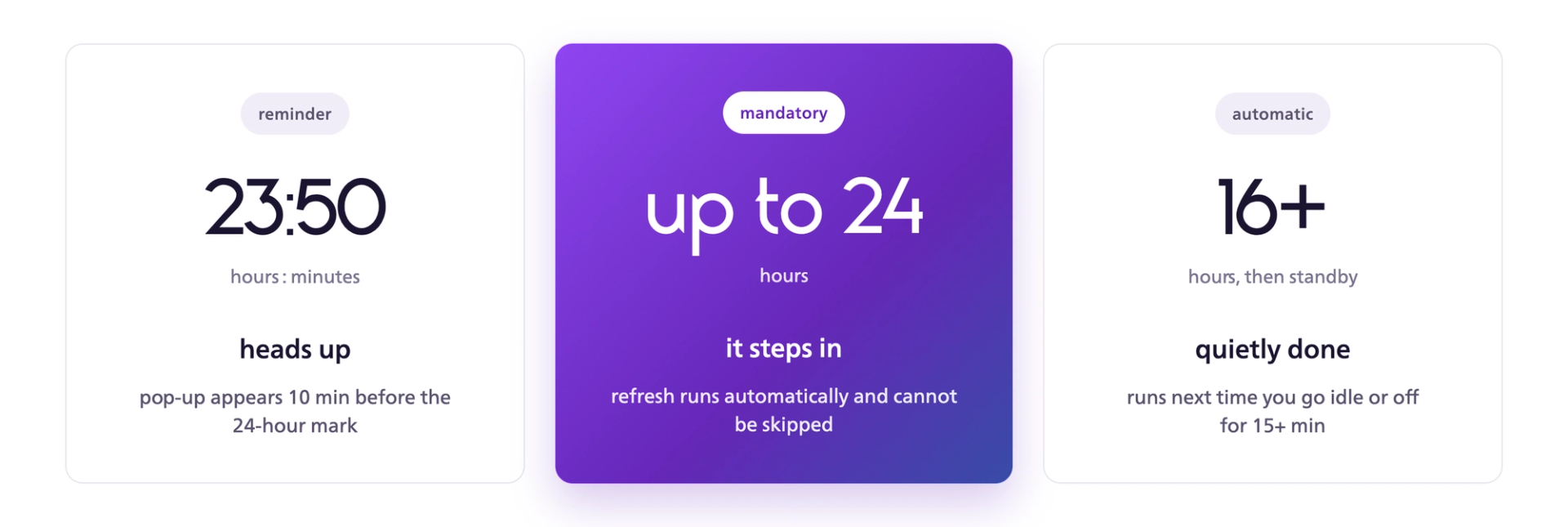
OLED panel refresh timeline showing a reminder at 23:50 hours, mandatory refresh after up to 24 hours, and automatic standby refresh after 16+ hours.

*Check your model's Special Care document for the exact figures.


Pixel Refresh Reminders

Reminder

Appears 10 minutes before 24 hours of cumulative use without a Pixel RefreshA notification appears on the middle-right of your monitor. If a Pixel Refresh runs before the 24-hour mark, the countdown resets.

Automatic Refresh

Triggers at 24 hours of cumulative use, or earlier if the monitor reaches 16 hours of cumulative use and then goes into standby or is turned off for more than 15 minutesPixel Refresh runs automatically once either condition is met. If it completes successfully, the cumulative usage counter resets. Pixel Refresh cannot run while the monitor is fully powered off from the wall (AC off).
Start Pixel Refresh Manually

Pixel Refresh runs automatically when required and can also start in standby or when the monitor is turned off. You can also start it manually through the OSD menu before an extended session.
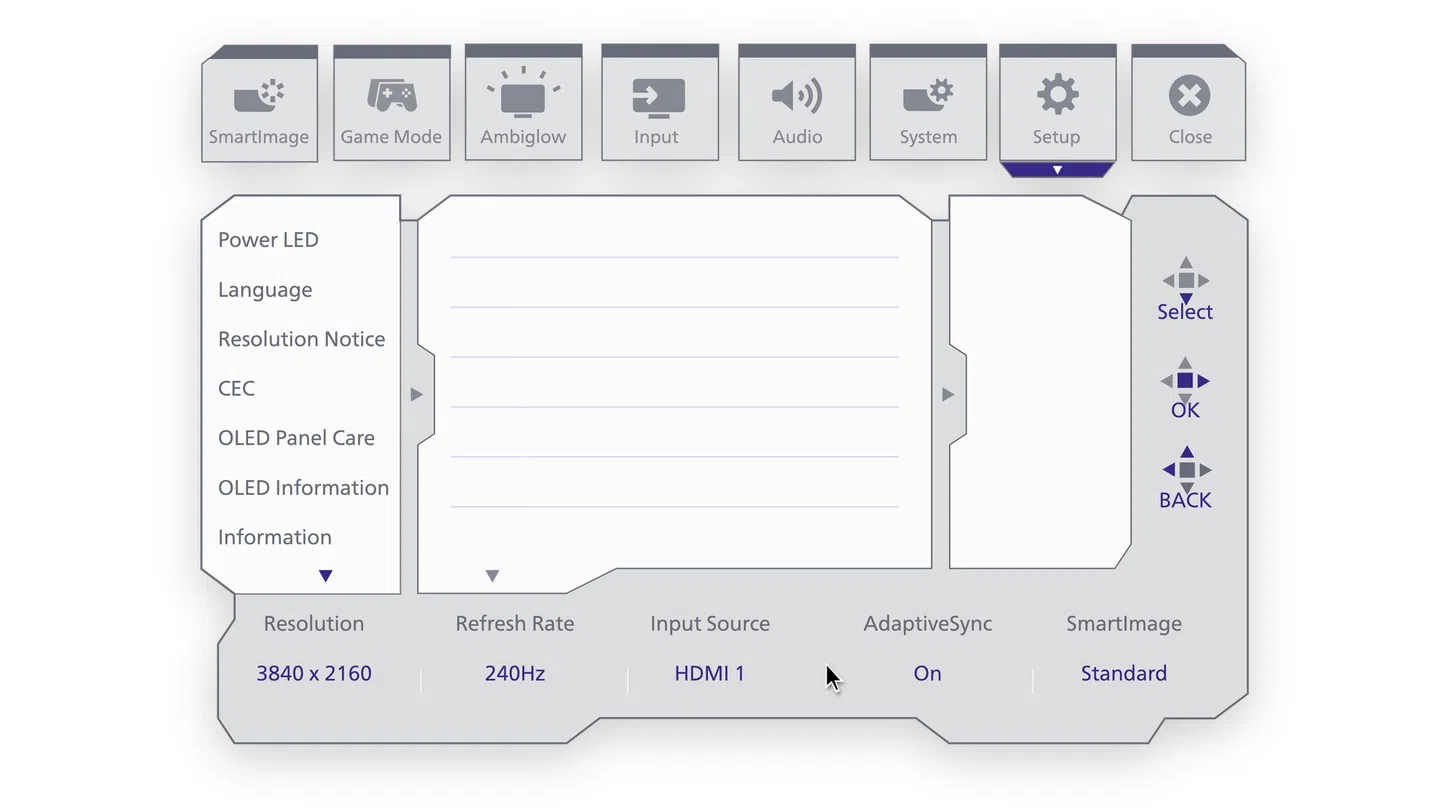
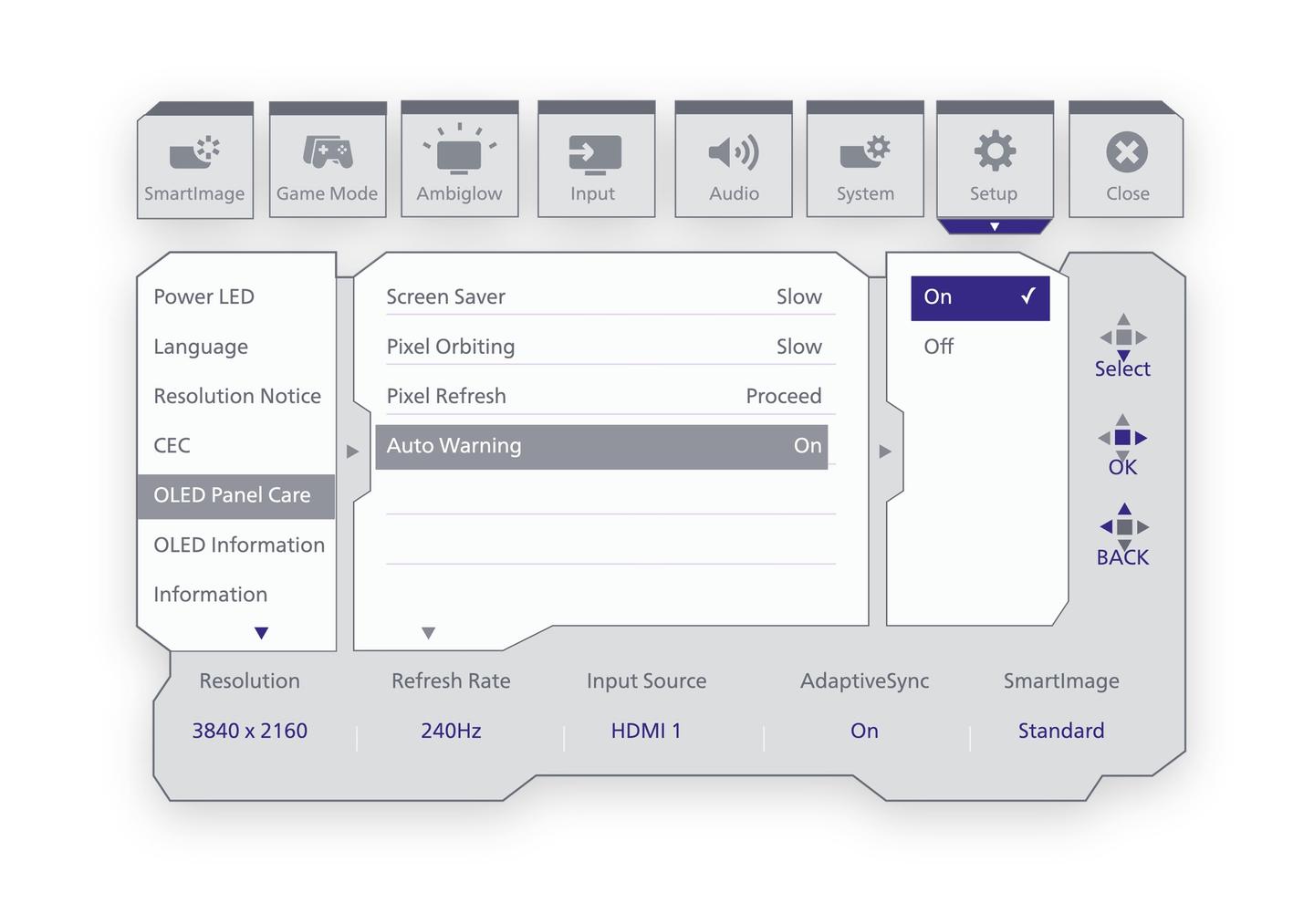
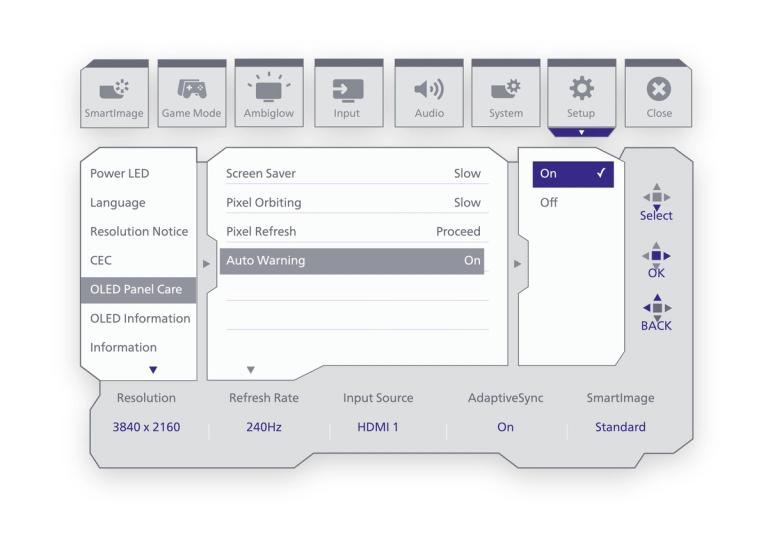
  • Before a longer session, you can start Pixel Refresh manually through the OSD menu. It helps protect your QD-OLED panel and reduce interruptions during longer play sessions.
  • Open the OSD menu and go to Setup.
  • Navigate to QD OLED Panel Care.
  • Select Pixel Refresh.
  • Move right and select Proceed.
  • Press OK to confirm.
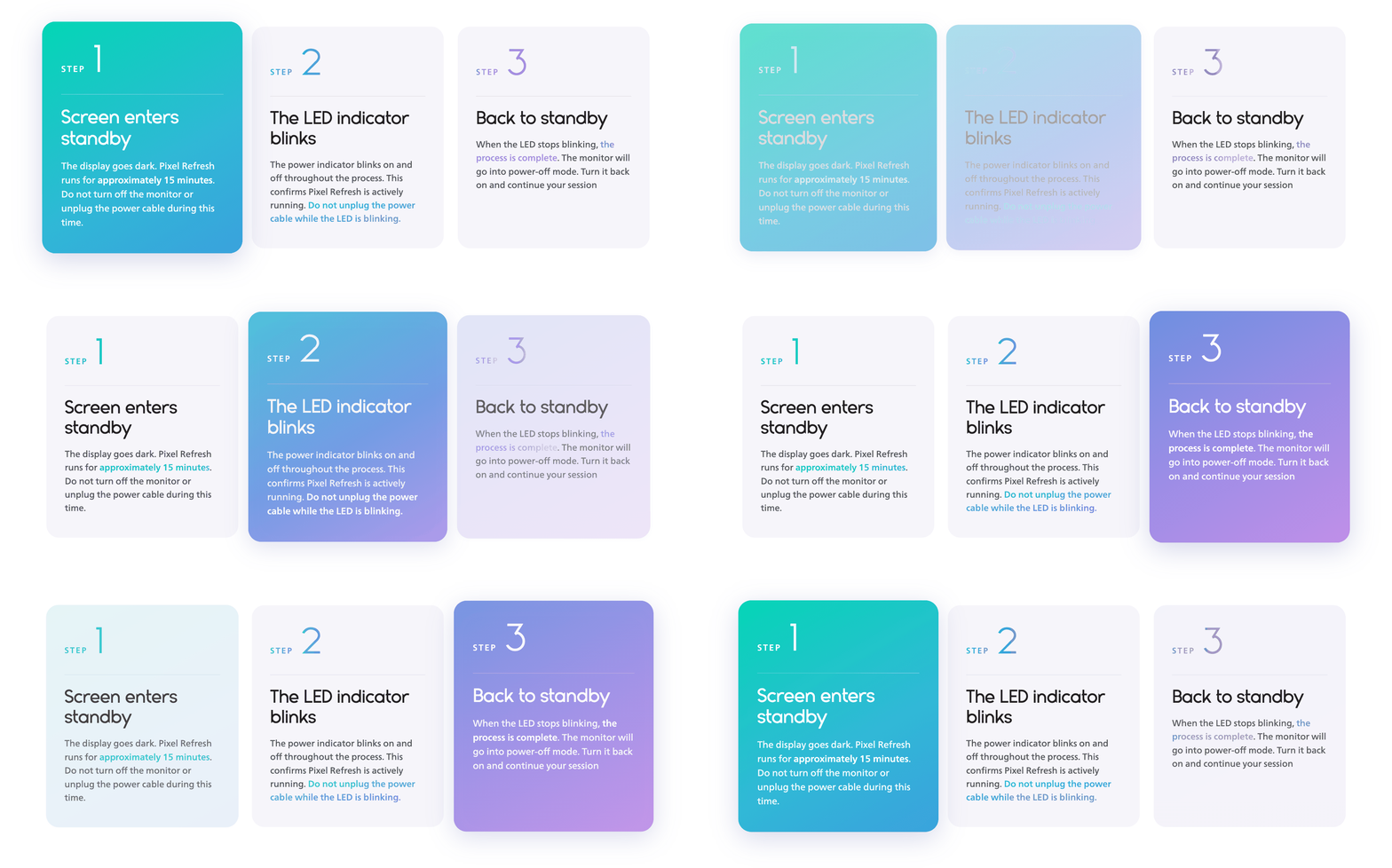
  • Pixel Refresh takes around 15 minutes. Once complete, your QD OLED monitor is ready to use again.
Philips Evnia monitor OSD showing the OLED Panel Care menu under Setup, with Screen Saver, Pixel Orbiting, Pixel Refresh, and Auto Warning settings.

What Happens While Pixel Refresh Runs

Three steps of Philips Evnia OLED Pixel Refresh: screen enters standby, LED indicator blinks during the 15-minute process, and monitor returns to standby.

Simple ways to care for your QD OLED panel.

  • Let the required refresh complete. It helps support long-term panel health and is mandatory for warranty coverage.
  • Use standby when you step away. Pixel Refresh starts automatically when the monitor is in standby for 15 minutes or is turned off.
  • Leave protection features on. Screen Saver, Pixel Orbiting, and other panel-care features are available on most models — check your model's OSD to confirm which are active.
  • Avoid leaving static images on screen for extended periods. Paused menus, wallpapers, and always-on widgets are the primary cause of QD OLED burn-in. Set a standby timer if you step away regularly.
  • Avoid direct sunlight and extreme temperatures. OLED panels are sensitive to UV exposure and temperature extremes, which can reduce brightness and lifespan.

Protection that works while you play.

Wireframe_background

Pixel Refresh takes care of the periodic reset. Depending on your model, additional passive protection features may run continuously in the background, targeting the most common causes of QD OLED burn-in.

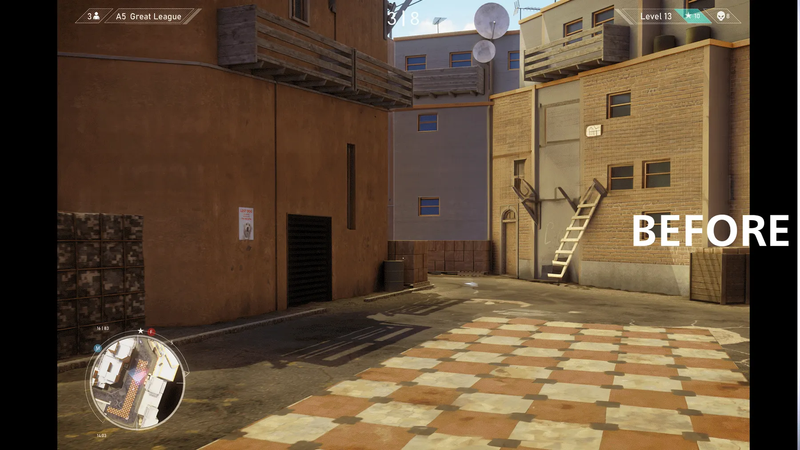
Multi-Logo Protection

Multi-Logo Protection

Evnia monitors are designed to look out for your screen during long sessions. Multi-logo Protection perceives static logos and gently dims them to help reduce the risk of burn-in even when several logos stay on screen at once. With automatic detection and two dimming levels (10% or 20%) it protects sensitive areas while keeping the rest of your display bright, clear and comfortable for everyday play and viewing.
Boundary & Taskbar Dimmer

Boundary & Taskbar Dimmer

Boundary Dimmer lowers brightness in high-contrast areas like letterbox bars, side borders or split screens, making it an ideal feature for movies, multitasking and everyday use. Taskbar Dimmer automatically detects static taskbars and gently dims them to help prevent image retention. It’s a simple way to protect your display while keeping everything you need visible and comfortable on screen.
Thermal Protection

Thermal Protection

Thermal Protection helps your monitor stay cool during long, high-energy sessions. It keeps an eye on the panel’s temperature and gently adjusts brightness as heat rises, and it maintains stable performance and long-term reliability. If temperatures approach or exceed 60°C, brightness is then automatically reduced to protect the display. No settings to manage. No interruptions. Just protection running in the background while you play.

FAQ

Early reminders can be dismissed, but Pixel Refresh still runs automatically when required. The exact usage threshold depends on your model. Pixel Refresh is part of the monitor's QD OLED care process and helps support long-term panel health.