How to Enable OverClock on Your Philips Evnia Monitor
Push your refresh rate further
Selected Philips Evnia gaming monitors support OverClock, allowing you to use a higher refresh rate than the monitor's native setting.
Enable OverClock in the monitor's On-Screen Display (OSD), then select the higher refresh rate in Windows or your graphics card settings.
Before you start
A few things to know before enabling OverClock:
- OverClock is an official Philips Evnia monitor feature and does not affect the standard monitor warranty.
- OverClock must first be enabled through the monitor's OSD.
- Until OverClock is enabled, Windows and your graphics card settings will only show the monitor's native refresh rate.
- The maximum OverClock refresh rate is available only at the supported resolution specified for your monitor.
- If you experience flickering, instability, or other display issues, switch the refresh rate back to the monitor's native setting.
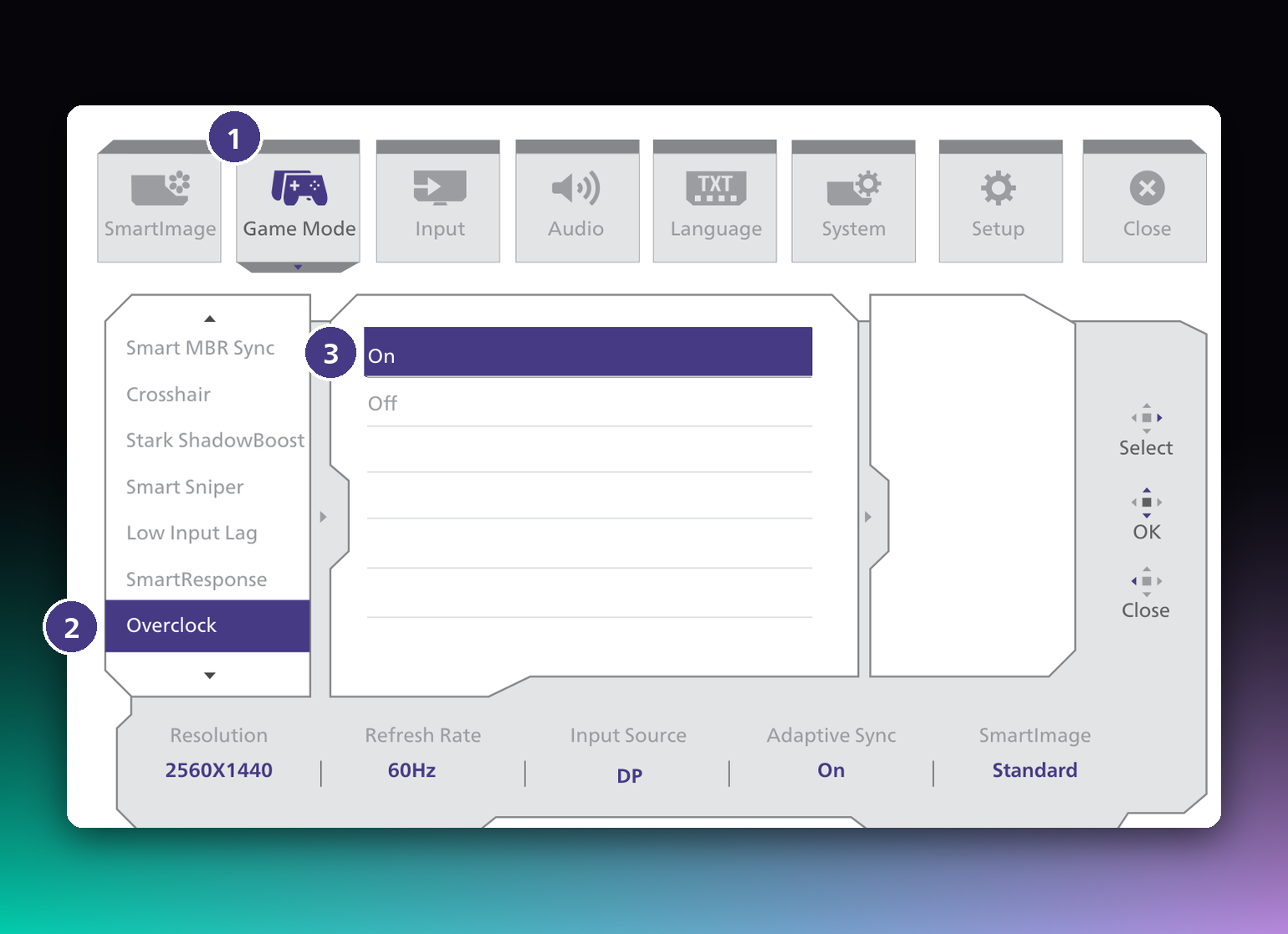
1. Turn on OverClock
Using the controls on your monitor, open the OSD and go to:
Game Mode → OverClock → On
Once enabled, the higher supported refresh rate will become available in Windows or your graphics card settings.
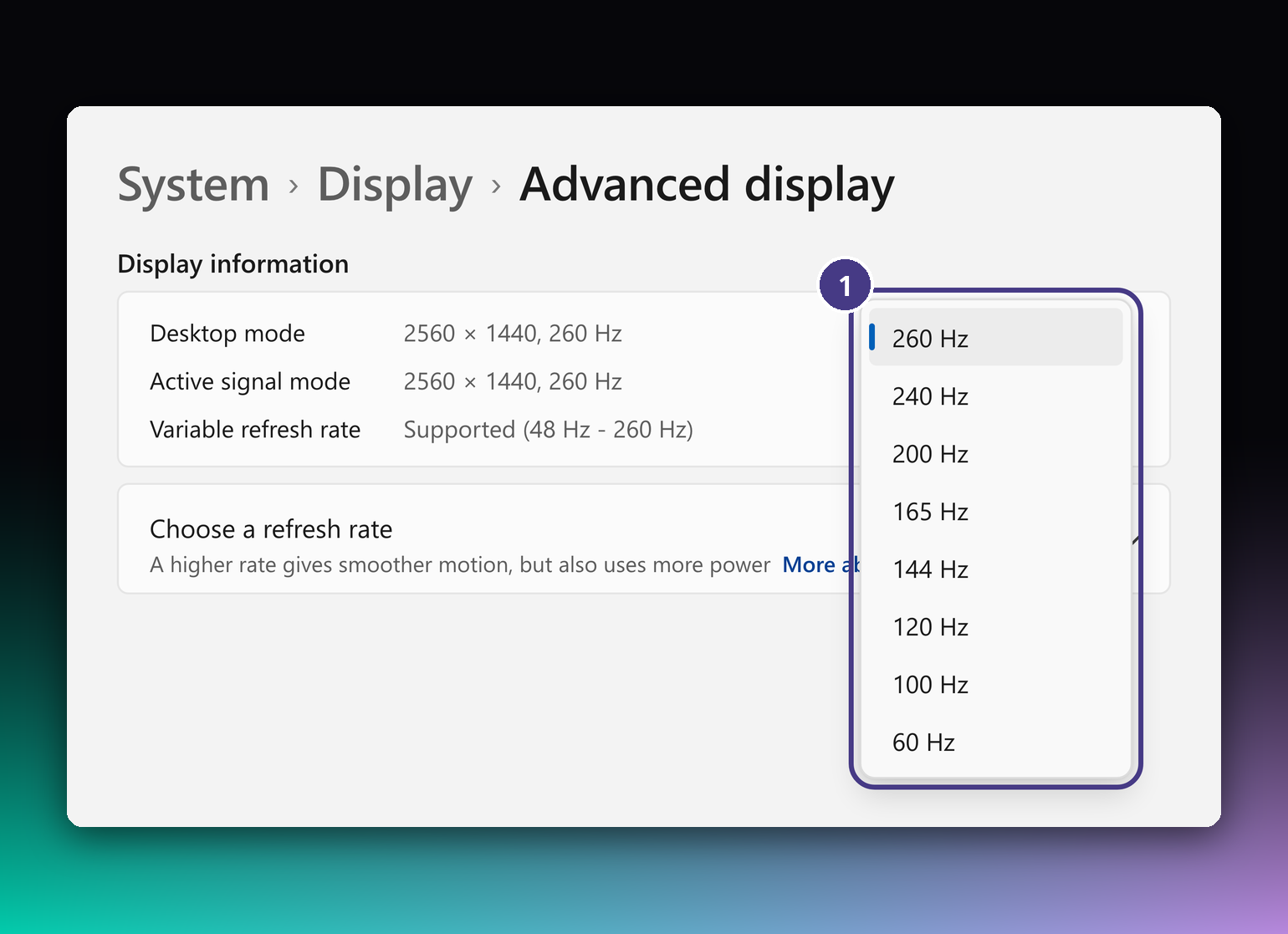
2. Select the higher refresh rate in Windows
- Open Settings.
- Go to System → Display → Advanced display.
- Find Choose a refresh rate.
- Select the highest supported refresh rate for your monitor.
If OverClock is enabled correctly, the higher refresh rate will appear in the list.
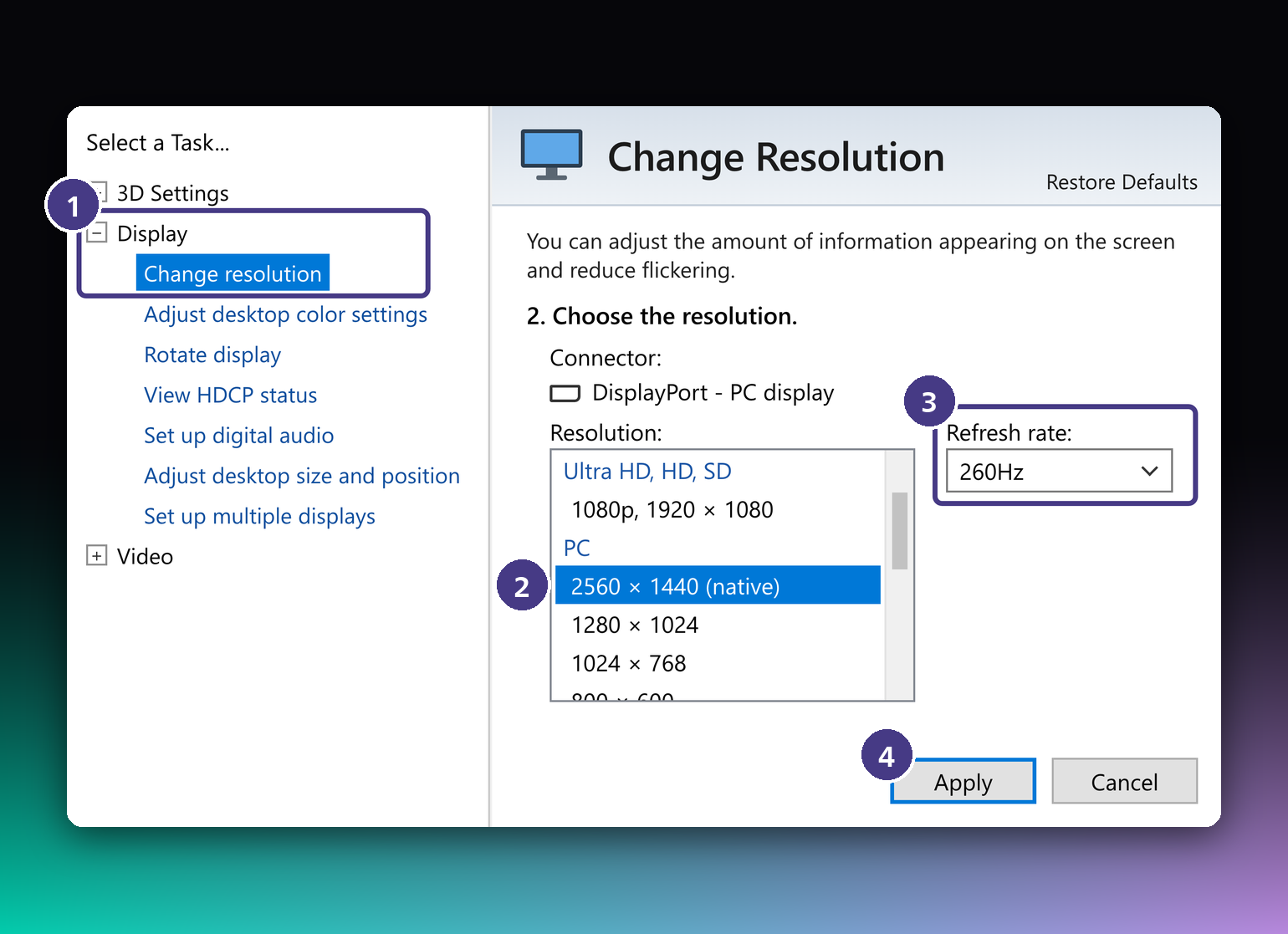
3. Using NVIDIA Control Panel
If you use an NVIDIA graphics card:
- Open NVIDIA Control Panel.
- Go to Display → Change resolution.
- Select your Philips Evnia monitor.
- Choose the monitor's supported resolution.
- Select the highest available refresh rate.
- Click Apply.
Your monitor will now run at the selected OverClock refresh rate.
Can't see the higher refresh rate?
If the OverClock refresh rate does not appear, check the following:
- Make sure OverClock is set to On in the monitor's OSD.
- Make sure you are using the supported resolution for the maximum OverClock refresh rate.
- Restart your PC after enabling OverClock.
- Reconnect the display cable and check the refresh rate again.
If you notice flickering or other display instability, return to the monitor's native refresh rate through Windows or your graphics card settings.
Ready to play at a higher refresh rate
Once OverClock is enabled and the higher refresh rate is selected, your Philips Evnia monitor is ready to deliver smoother motion and a more responsive gaming experience.
OverClock is available only on selected Philips Evnia models. Check your monitor's product page or user manual to confirm OverClock support, the native refresh rate, the maximum OverClock refresh rate, and the resolution required to use it.